Kotlin Multiplatform quickstart
In this tutorial, you'll learn how to build and run a simple Kotlin Multiplatform app with a Compose Multiplatform UI.
Choose a build tool
This quickstart uses Gradle to create and run a new Kotlin Multiplatform project in an IDE. Gradle supports both new projects and projects that already use it. This quickstart is designed for Gradle users who want to introduce Kotlin Multiplatform into their projects or simply use a familiar environment.
For a brand-new project, you can also try Kotlin Toolchain, a tool created by JetBrains with Kotlin Multiplatform in mind. It offers a CLI and a transparent configuration format which makes it well suited for AI workflows.
Set up the environment
Set up IntelliJ IDEA or Android Studio, the ANDROID_HOME variable, and Xcode:
Choose and install the IDE: KMP is fully supported in IntelliJ IDEA and Android Studio.
We recommend installing IDEs using the JetBrains Toolbox app. For standalone installations, download the installer for IntelliJ IDEA or Android Studio.
For best results, use the latest stable version.
Install the Kotlin Multiplatform IDE plugin. You can find it in the plugin marketplace (Settings | Plugins | Marketplace) or install it from the plugin web page.
If you don't have the
ANDROID_HOMEenvironment variable set, configure your system to recognize it:Add the following command to your
.profileor.zprofile:export ANDROID_HOME=~/Library/Android/sdkFor PowerShell, you can add a persistent environment variable with the following command (see PowerShell docs for details):
[Environment]::SetEnvironmentVariable('ANDROID_HOME', '<path to the SDK>', 'Machine')For CMD, use the
setxcommand:setx ANDROID_HOME "<path to the SDK>"To create iOS applications, you need a macOS machine with Xcode installed. Your IDE runs Xcode under the hood to build iOS frameworks.
Make sure to launch Xcode at least once before starting to work with KMP projects so that it goes through the initial setup.
Create a project
Use the Kotlin Multiplatform generator to create a project:
Select File | New | Project in the main menu.
Choose Kotlin Multiplatform in the list on the left. Set Name and Location as you see fit. Project ID is generated based on the name.
The rest of this page describes a Gradle project: make sure it is selected in the Build system switch to continue.
To try out all supported platforms, select Android, iOS, Desktop, Web, and Server. In the UI implementation options, leave Share UI selected to use Compose Multiplatform as the UI framework for the corresponding target.
Click the Create button and wait for the IDE to generate and import the project.
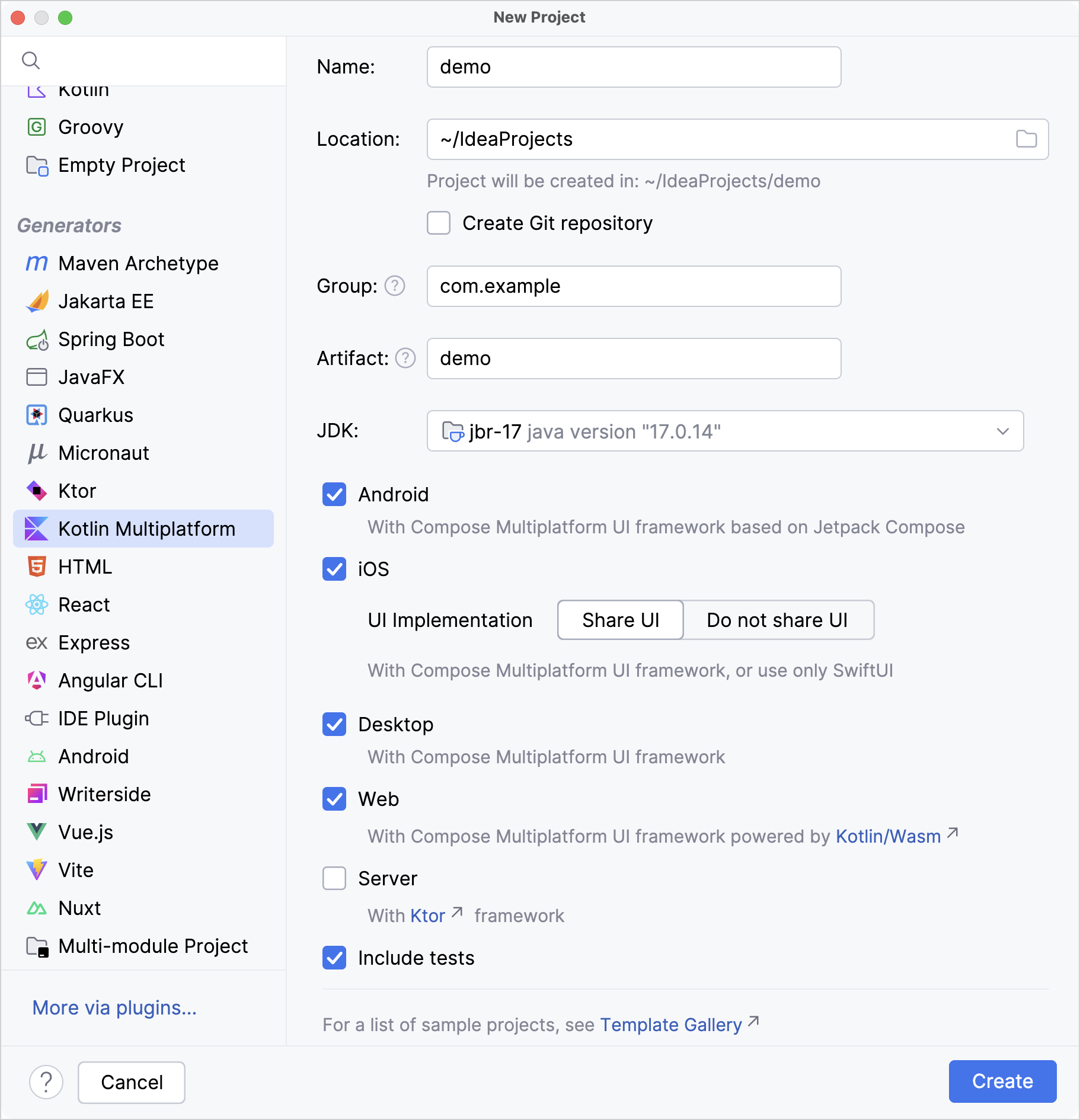
Use the wizard to create a new project:
Select File | New | New project in the main menu.
Choose Kotlin Multiplatform in the default Phone and Tablet template category.
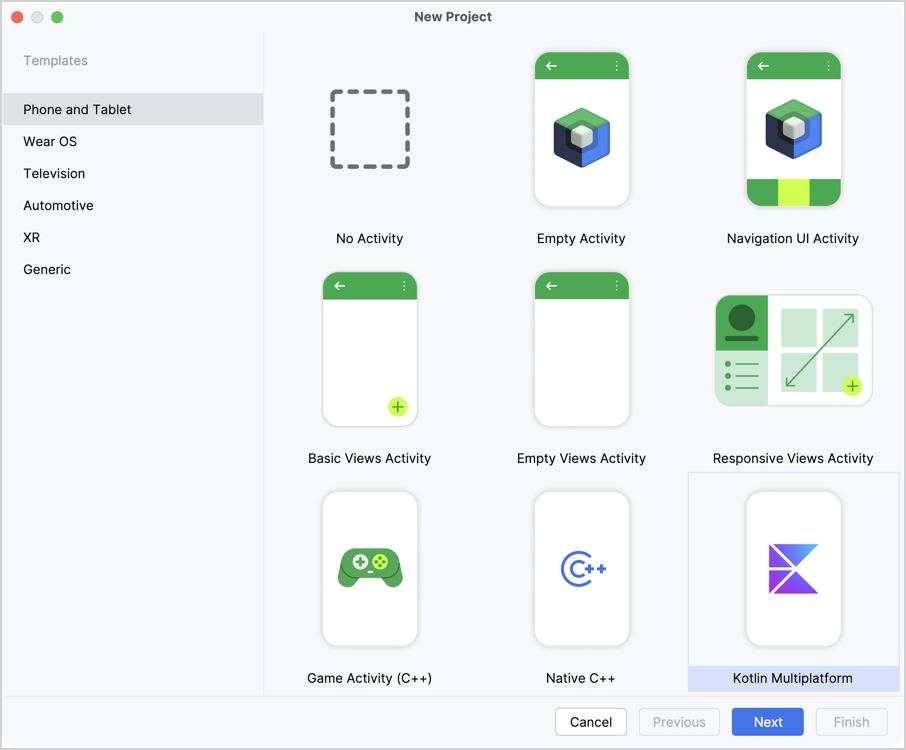
Set the project name, package name, and save location as needed, then click Next. Build configuration language should remain set as Kotlin DSL.
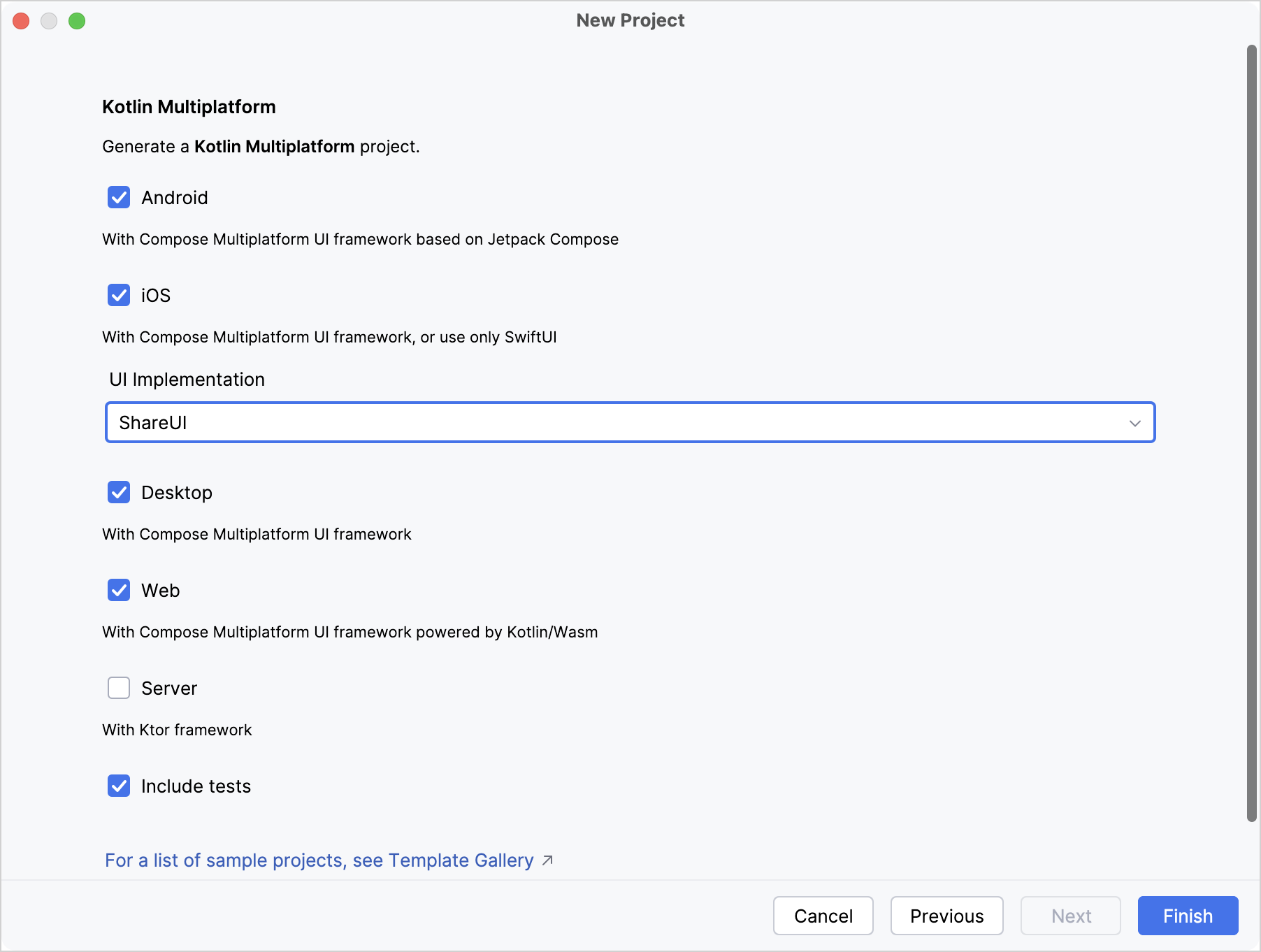
To create a full demo, choose all available platforms: Android, iOS, Desktop, Web, and Server. Leave Share UI options selected where they are available to use Compose Multiplatform as the UI framework for the corresponding target.
Click the Finish button and wait for the IDE to generate and import the project.
You can find the code being shared between platforms in the shared module. The Platform.kt file contains an expect declaration for retrieving a platform's name.
When you run the apps for different platforms, you can see the same UI layout with different platform names supplied by the native calls.
Consult the preflight checks
To make sure there are no environment issues with the project setup, open the Project Environment Preflight Checks tool window: click the preflight checks icon on the right sidebar or the bottom bar  .
.
In this tool window, you can see which checks passed, rerun them, or change their settings. Normally, the window opens automatically when a problem is detected and stays hidden otherwise.
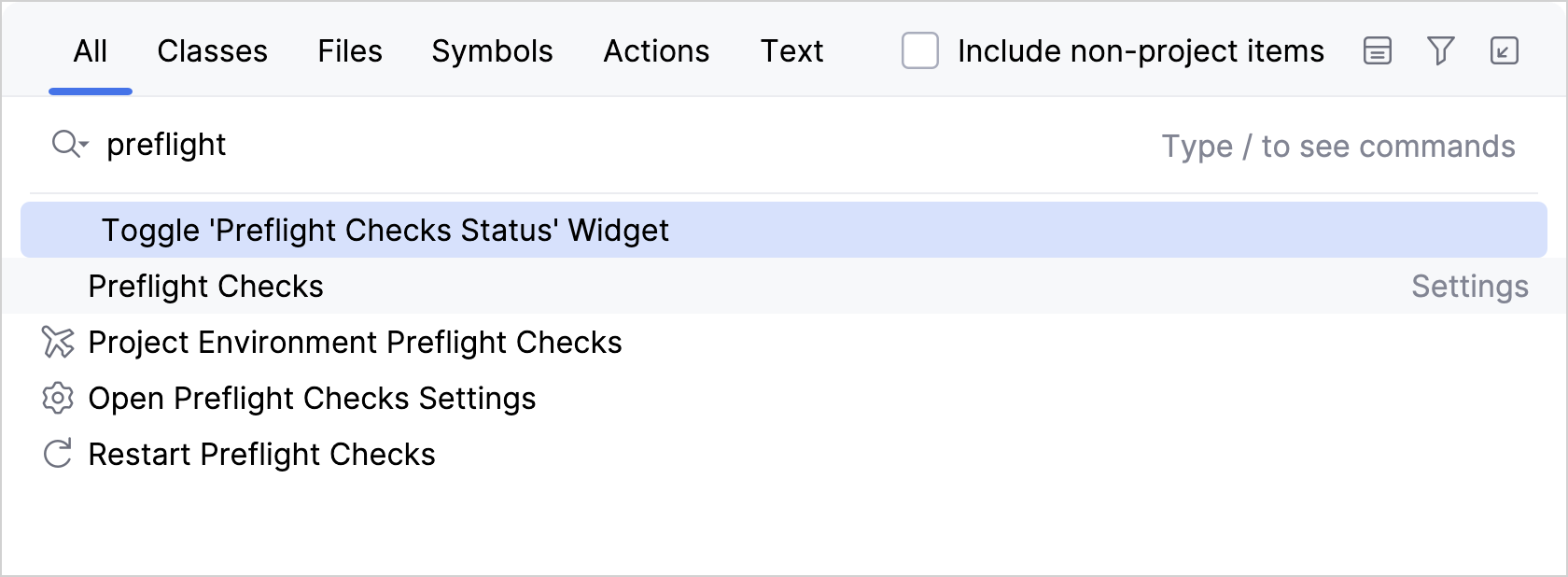
Preflight check commands are also available in the Search Everywhere dialog. Press double Shift and search for commands containing the word "preflight":
Modules in the generated project
Depending on the set of platforms you select in the Kotlin Multiplatform wizard, you can see the following modules after the IDE imports your project:
androidApp is the module that builds the Android application.
desktopApp is the module that builds the desktop JVM application.
iosApp is an Xcode project that builds the iOS application. It depends on and uses the shared module as an iOS framework.
shared is a Kotlin Multiplatform module that contains the common code for the Android, desktop, iOS, and web applications.
webApp is the module that builds web applications, both Kotlin/JS and Kotlin/Wasm.
server and core modules are created only for the server platform: core holds code shared between the server and client apps; server configures an endpoint.
The shared module is compiled for each target. For example, it's treated as a Kotlin/JVM module when building the Android app and as Kotlin/Native when building an iOS app.
Run the sample apps
The project created by the IDE wizard includes generated run configurations for iOS, Android, desktop, and web applications, as well as Gradle tasks for running the server app.
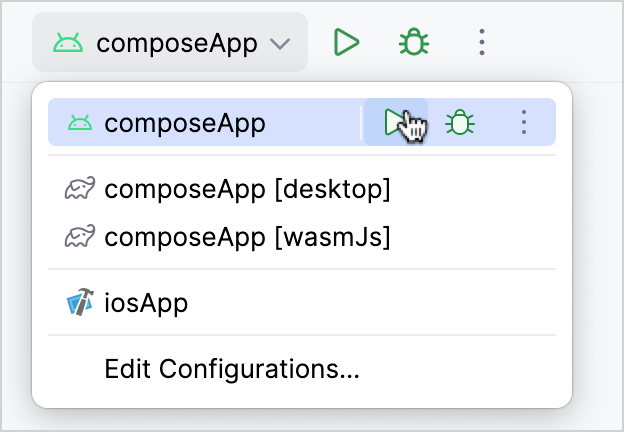
To start a run configuration, find the dropdown menu on the top right of the IDE and click the Run button:
To run the Android app, start the androidApp run configuration:
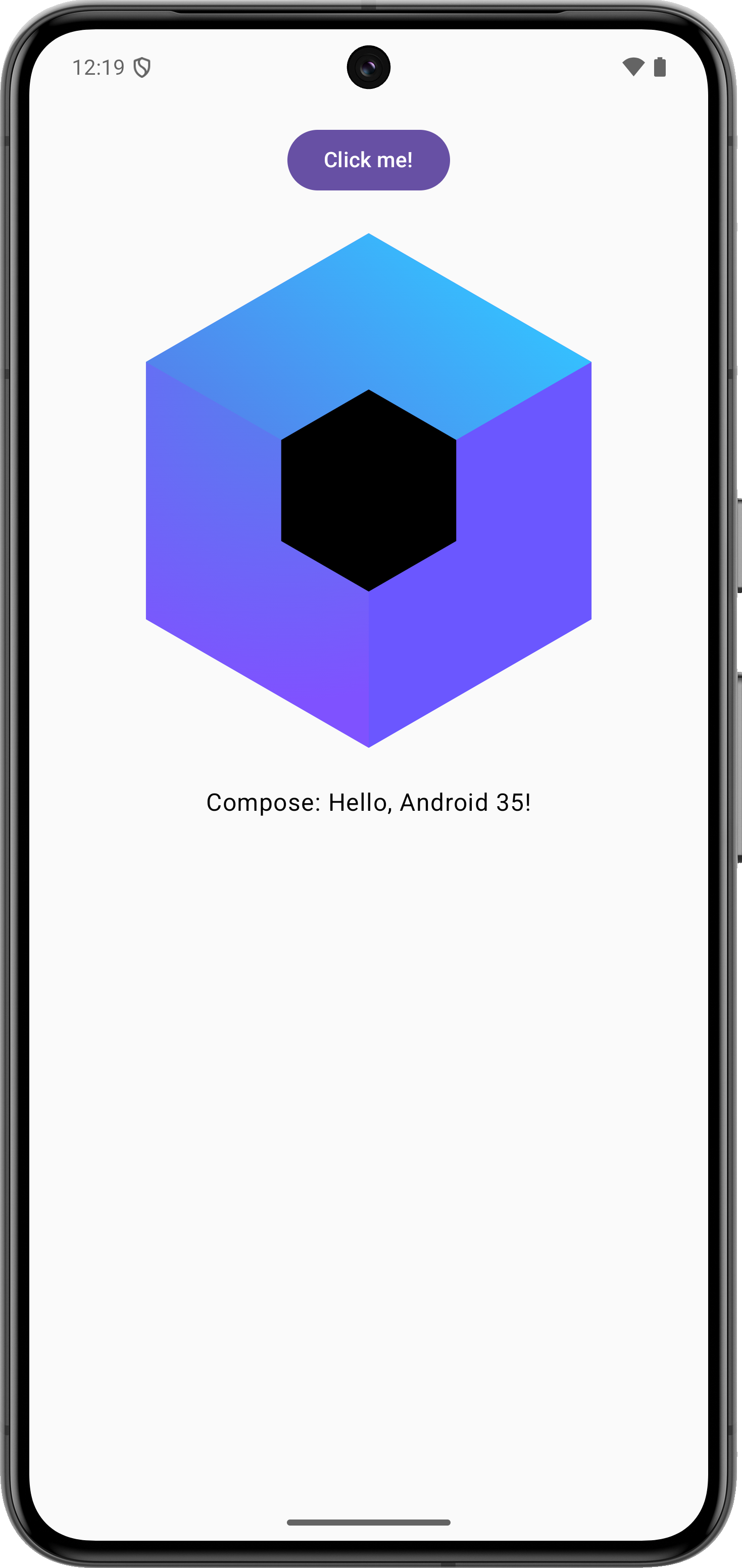
By default, it runs on the first available virtual device:
To create an Android run configuration manually (Run | Edit Configurations), choose Android App as the run configuration template and select the module [project name].androidApp.
Select the iosApp run configuration and a simulated device:
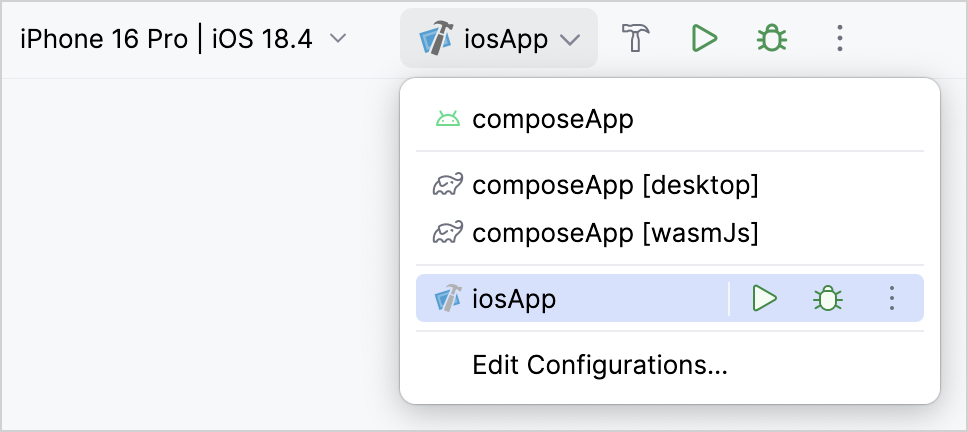
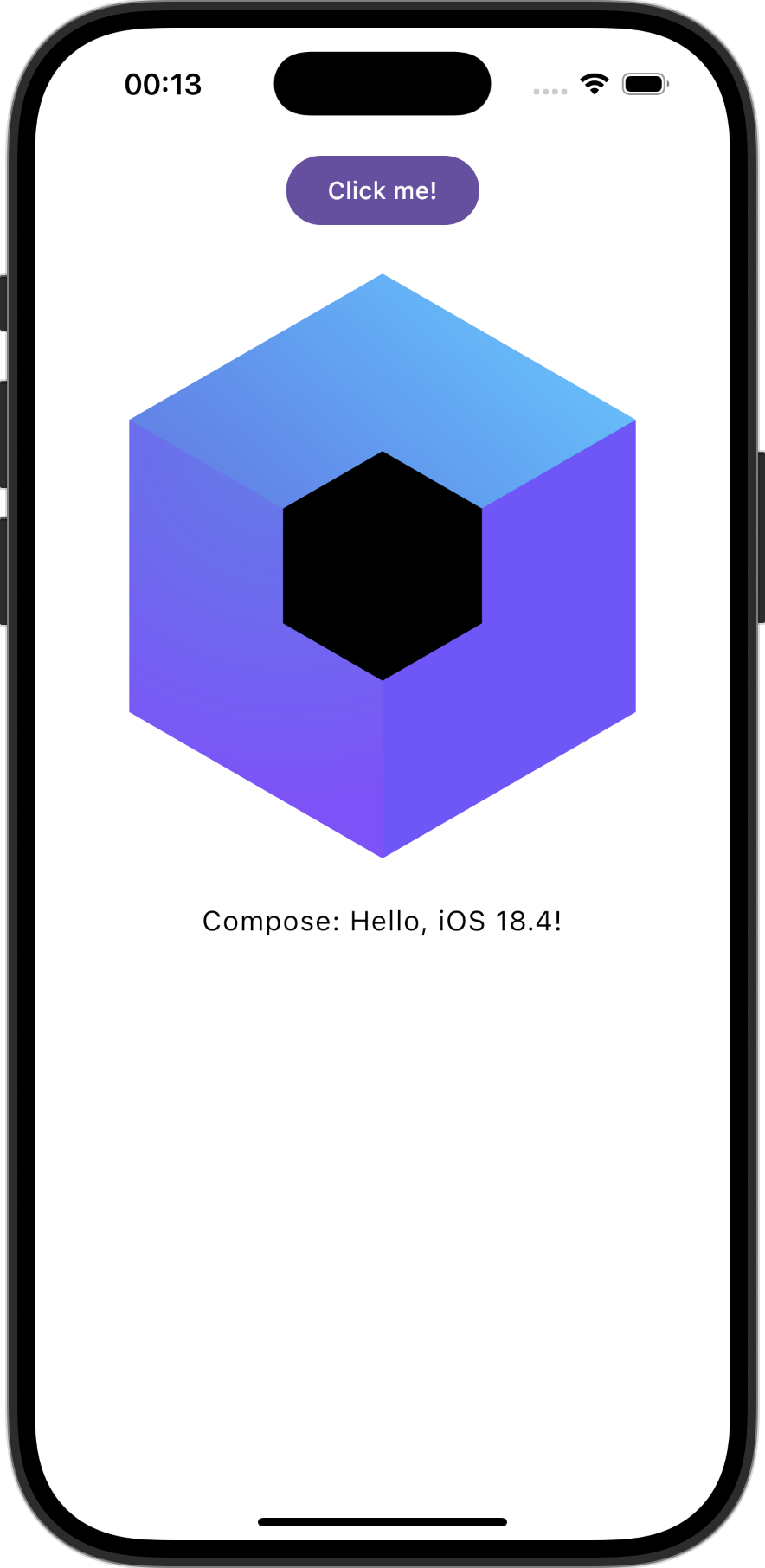
The run configuration builds the iOS app with Xcode under the hood and launches it using the iOS Simulator. The first build collects native dependencies and caches build data to make subsequent runs faster:
The default run configuration for a desktop app is created as desktopApp [hot] 🔥:
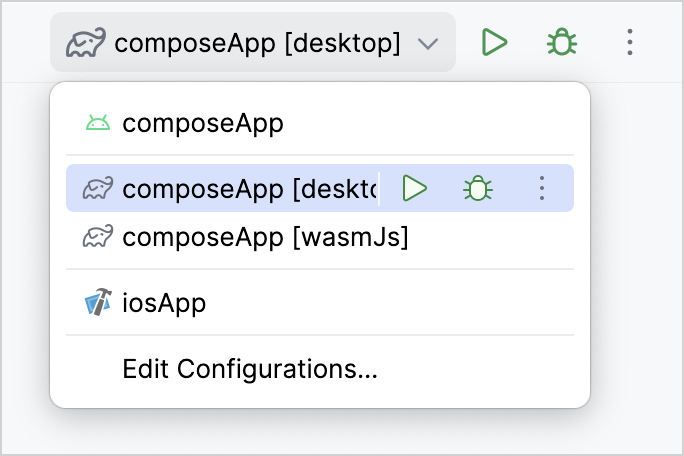
With this configuration, you can run the JVM desktop app:
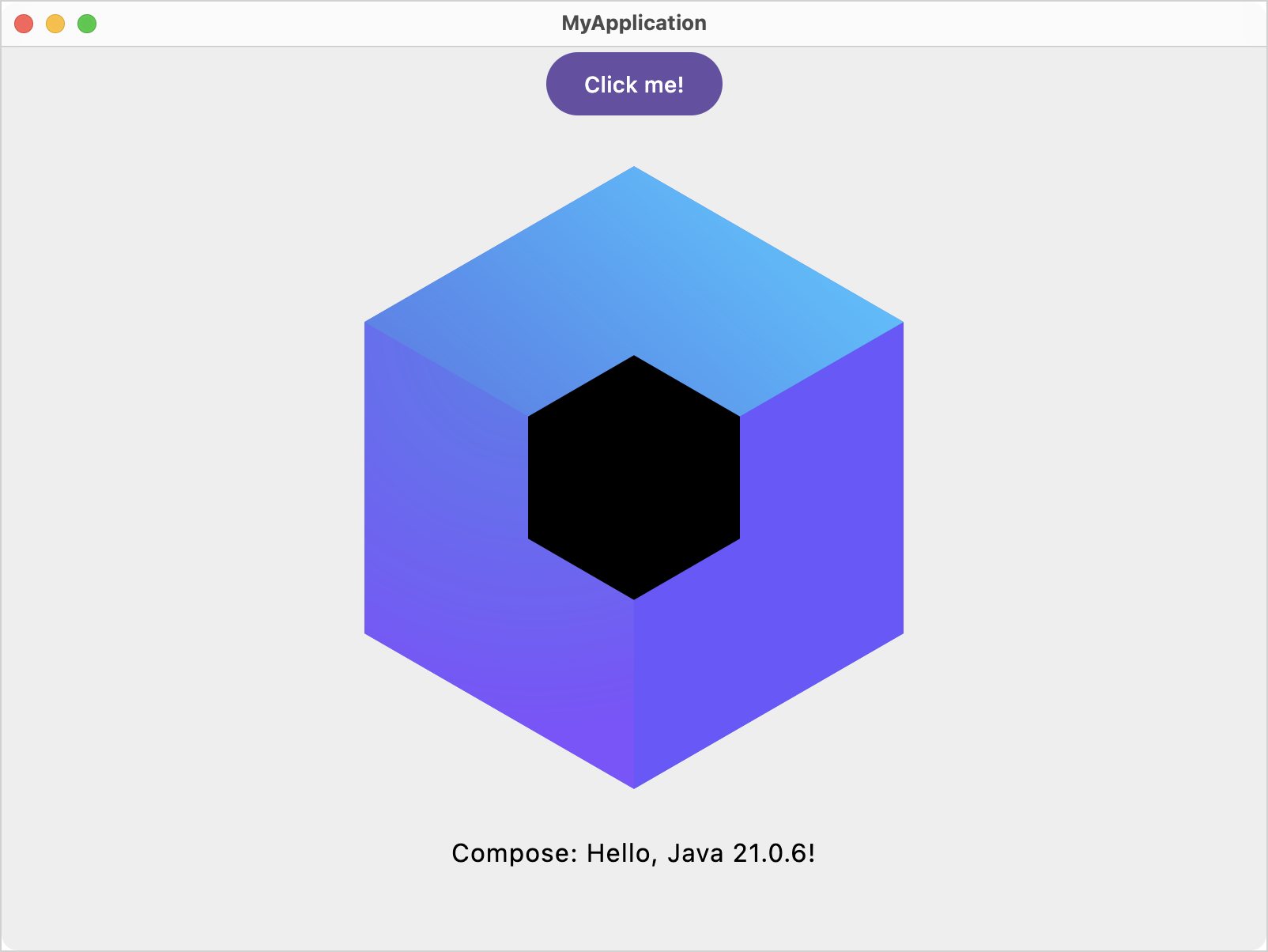
To create a desktop run configuration with Hot Reload manually (Run | Edit Configurations), choose the Gradle run configuration template and point to the [app name]:desktopApp Gradle project with the following command:
By default, two run configurations are created for the web: webApp [wasmJs] and webApp [js]. Both run the same app, built with Kotlin/Wasm or Kotlin/JS respectively:
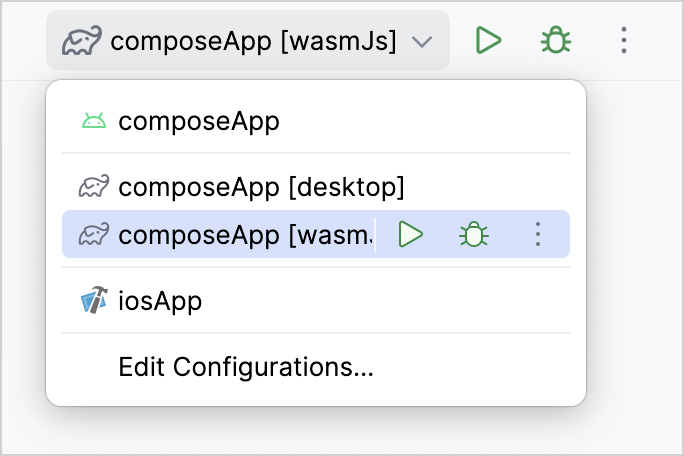
When you run this configuration, the IDE builds the Kotlin/Wasm app and opens it in the default browser:
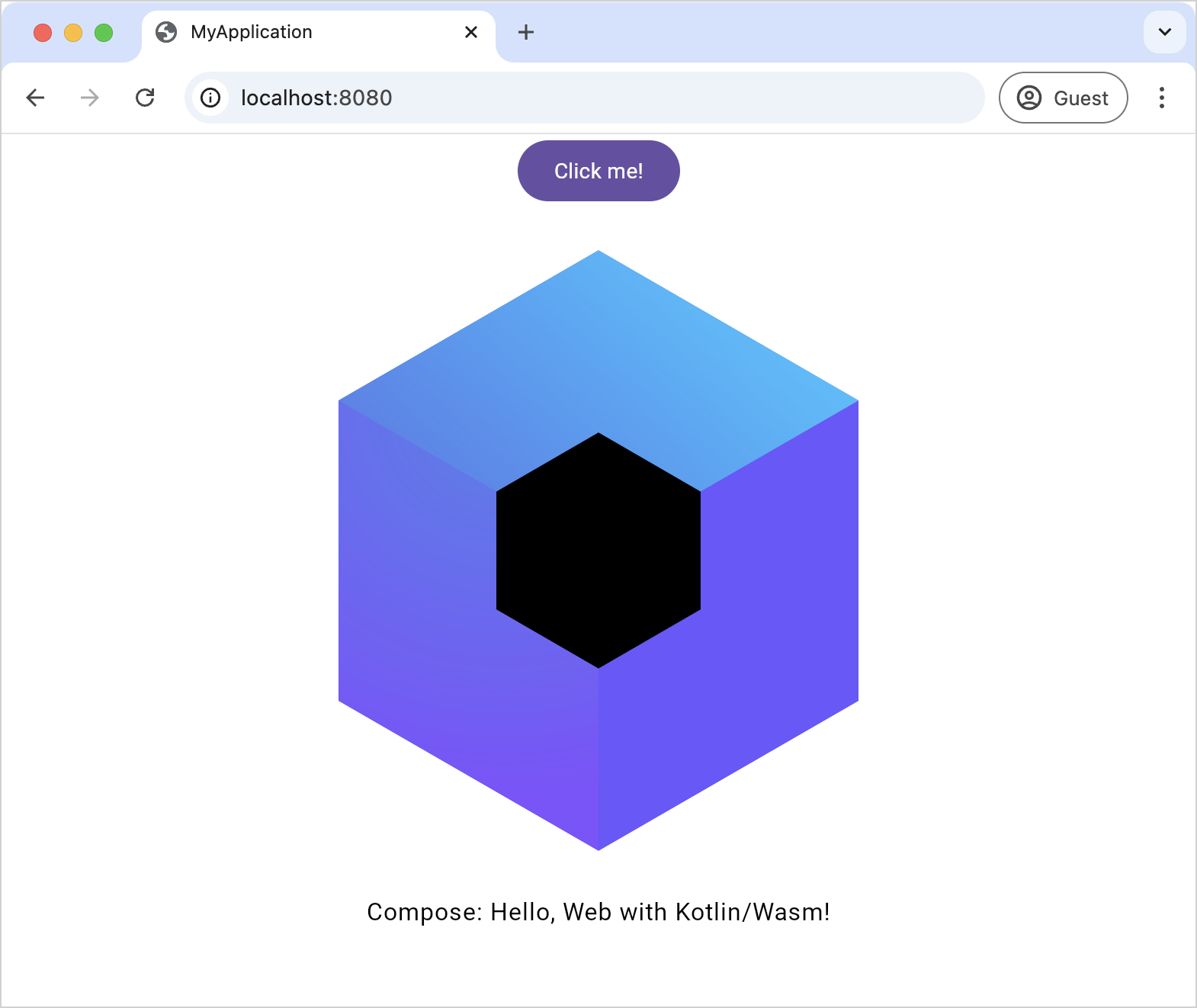
To create a web run configuration manually, choose a Gradle run configuration template and point to the [app name]:webApp Gradle project with the wasmJsBrowserDevelopmentRun task, or jsBrowserDevelopmentRun for the Kotlin/JS version.
Troubleshooting
Issues with Kotlin Multiplatform setup usually occur when Java, Android SDK, or Xcode are not configured correctly.
Java and JDK
Here are the most common issues related to Java configuration:
Some tools may not find a Java installation or use the wrong version. To solve this, set the
JAVA_HOMEenvironment variable to the directory where the appropriate JDK is installed (we recommend using JetBrains Runtime), then append the path to thebinfolder inside yourJAVA_HOMEto thePATHvariable.If you encounter issues with Gradle JDK in Android Studio, make sure it's configured correctly: select Settings | Build, Execution, Deployment | Build Tools | Gradle.
Android tools
If you have trouble launching Android tools like adb, make sure paths to ANDROID_HOME/tools, ANDROID_HOME/tools/bin, and ANDROID_HOME/platform-tools are added to your PATH environment variable.
Xcode
If your iOS run configuration reports that there is no virtual device to run on, or the preflight check fails, make sure to launch Xcode and check for iOS SDK updates.
Get help
Kotlin Slack: Get an invite and join the #multiplatform channel.
Kotlin Multiplatform Tooling issue tracker: Report a new issue.
What's next
Learn more about the structure of a KMP project and writing shared code:
Fully shared code: Time zone picker app: A beginner-level tutorial that teaches you how to work with shared UI code using Compose Multiplatform.
Native UI: Shared logic for REST API requests: A beginner-level tutorial that teaches how to work with shared code in a multiplatform project with native UI code.
Take a deep dive into specific Kotlin Multiplatform use cases:
Organizing code and artifacts around multiplatform artifacts
Learn about the Compose Multiplatform UI framework and its place in the Compose ecosystem: Relationship between Compose Multiplatform and Jetpack Compose
Discover code already written for KMP:
Samples: official JetBrains samples along with a curated list of projects showcasing KMP capabilities.
The GitHub topics:
kotlin-multiplatform: Projects implemented with Kotlin Multiplatform.
kotlin-multiplatform-sample: A list of sample projects written with KMP.
klibs.io: Search platform for KMP libraries. It indexes projects from GitHub and artifacts from Maven Central, allows for fine filtering of search results, and provides support for AI workflows.