CocoaPods overview and setup
Kotlin/Native provides integration with the CocoaPods dependency manager. You can add dependencies on Pod libraries as well as use a Kotlin project as a CocoaPods dependency.
You can manage Pod dependencies directly in IntelliJ IDEA or Android Studio and enjoy all the additional features such as code highlighting and completion. You can build an entire Kotlin project with Gradle without switching to Xcode.
You only need Xcode if you want to change Swift/Objective-C code or run your application on an Apple simulator or device. To work with Xcode, update your Podfile first.
Set up an environment to work with CocoaPods
Install the CocoaPods dependency manager using the installation tool of your choice:
Install RVM in case you don't have it yet.
Install Ruby. You can choose a specific version:
rvm install ruby 4.0.6Install CocoaPods:
sudo gem install -n /usr/local/bin cocoapods
Install rbenv from GitHub if you don't have it yet.
Install Ruby. You can choose a specific version:
rbenv install 4.0.6Set the Ruby version as local for a particular directory or global for the whole machine:
rbenv global 4.0.6Install CocoaPods:
sudo gem install -n /usr/local/bin cocoapods
You can install the CocoaPods dependency manager with the default Ruby that should be available on macOS:
Install Homebrew in case you don't have it yet.
Install CocoaPods:
brew install cocoapods
If you encounter problems during the installation, check the Possible issues and solutions section.
Create a project
When your CocoaPods environment is set up, you can configure your Kotlin Multiplatform project to work with Pods. The following steps show the configuration on a freshly generated project:
Generate a new project for Android and iOS using the Kotlin Multiplatform IDE plugin or the Kotlin Multiplatform web wizard. If using the web wizard, unpack the archive and import the project in your IDE.
Add the Kotlin CocoaPods Gradle plugin to the version catalog (the
gradle/libs.versions.tomlfile):[plugins] kotlinCocoapods = { id = "org.jetbrains.kotlin.native.cocoapods", version.ref = "kotlin" }Navigate to the root
build.gradle.ktsfile of your project and add the following alias to theplugins {}block:alias(libs.plugins.kotlinCocoapods) apply falseOpen the module where you want to integrate CocoaPods, for example, the
sharedLogicmodule, and add the following alias to theplugins {}block of thebuild.gradle.ktsfile:alias(libs.plugins.kotlinCocoapods)
Now you are ready to configure CocoaPods in your Kotlin Multiplatform project.
Configure the project
To configure the Kotlin CocoaPods Gradle plugin in your multiplatform project:
In the shared module's
build.gradle(.kts)of your project, apply the CocoaPods plugin as well as the Kotlin Multiplatform plugin.plugins { kotlin("multiplatform") version "2.4.21" kotlin("native.cocoapods") version "2.4.21" }Configure
version,summary,homepage, andbaseNameof the Podspec file in thecocoapodsblock:plugins { kotlin("multiplatform") version "2.4.21" kotlin("native.cocoapods") version "2.4.21" } kotlin { cocoapods { // Required properties // Specify the required Pod version here // Otherwise, the Gradle project version is used version = "1.0" summary = "Some description for a Kotlin/Native module" homepage = "Link to a Kotlin/Native module homepage" // Optional properties // Configure the Pod name here instead of changing the Gradle project name name = "MyCocoaPod" framework { // Required properties // Framework name configuration. Use this property instead of deprecated 'frameworkName' baseName = "MyFramework" // Optional properties // Specify the framework linking type. It's dynamic by default. isStatic = false // Dependency export // Uncomment and specify another project module if you have one: // export(project(":<your other KMP module>")) transitiveExport = false // This is default. } // Maps custom Xcode configuration to NativeBuildType xcodeConfigurationToNativeBuildType["CUSTOM_DEBUG"] = NativeBuildType.DEBUG xcodeConfigurationToNativeBuildType["CUSTOM_RELEASE"] = NativeBuildType.RELEASE } }Run Build | Reload All Gradle Projects in IntelliJ IDEA (or File | Sync Project with Gradle Files in Android Studio) to re-import the project.
Generate the Gradle wrapper to avoid compatibility issues during an Xcode build.
When applied, the CocoaPods plugin does the following:
Adds both
debugandreleaseframeworks as output binaries for all macOS, iOS, tvOS, and watchOS targets.Creates a
podspectask which generates a Podspec file for the project.
The Podspec file includes a path to an output framework and script phases that automate building this framework during the build process of an Xcode project.
Update Podfile for Xcode
If you want to import your Kotlin project to an Xcode project:
In the iOS part of your Kotlin project, make changes to the Podfile:
If your project has any Git, HTTP, or custom Podspec repository dependencies, specify the path to the Podspec in the Podfile.
For example, if you add a dependency on
podspecWithFilesExample, declare the path to the Podspec in the Podfile:target 'ios-app' do # ... other dependencies ... pod 'podspecWithFilesExample', :path => 'cocoapods/externalSources/url/podspecWithFilesExample' endThe
:pathshould contain the filepath to the Pod.If you add a library from the custom Podspec repository, specify the location of specs at the beginning of your Podfile:
source 'https://github.com/Kotlin/kotlin-cocoapods-spec.git' target 'kotlin-cocoapods-xcproj' do # ... other dependencies ... pod 'example' end
Run
pod installin your project directory.When you run
pod installfor the first time, it creates the.xcworkspacefile. This file includes your original.xcodeprojand the CocoaPods project.Close your
.xcodeprojand open the new.xcworkspacefile instead. This way you avoid issues with project dependencies.Run Build | Reload All Gradle Projects in IntelliJ IDEA (or File | Sync Project with Gradle Files in Android Studio) to re-import the project.
If you don't make these changes in the Podfile, the podInstall task will fail, and the CocoaPods plugin will show an error message in the log.
Possible issues and solutions
CocoaPods installation
Ruby installation
CocoaPods is built with Ruby, and you can install it with the default Ruby that should be available on macOS. Ruby 1.9 or later has a built-in RubyGems package management framework that helps you install the CocoaPods dependency manager.
If you're experiencing problems installing CocoaPods and getting it to work, follow this guide to install Ruby or refer to the RubyGems website to install the framework.
Version compatibility
We recommend using the latest Kotlin version. The minimum required version for this CocoaPods setup is 1.7.0.
Build errors when using Xcode
Some variations of the CocoaPods installation can lead to build errors in Xcode. Generally, the Kotlin Gradle plugin discovers the pod executable in PATH, but this may be inconsistent depending on your environment.
To set the CocoaPods installation path explicitly, you can add it to the local.properties file of your project manually or using a shell command:
If using a code editor, add the following line to the
local.propertiesfile:kotlin.apple.cocoapods.bin=/Users/Jane.Doe/.rbenv/shims/podIf using a terminal, run the following command:
echo -e "kotlin.apple.cocoapods.bin=$(which pod)" >> local.properties
Module or framework not found
When installing Pods, you may encounter module 'SomeSDK' not found or framework 'SomeFramework' not found errors related to C interop issues. To resolve such errors, try these solutions:
Update packages
Update your installation tool and the installed packages (gems):
Update RVM:
rvm get stableUpdate Ruby's package manager, RubyGems:
gem update --systemUpgrade all installed gems to their latest versions:
gem update
Update Rbenv:
cd ~/.rbenv git pullUpdate Ruby's package manager, RubyGems:
gem update --systemUpgrade all the installed gems to their latest versions:
gem update
Update the Homebrew package manager:
brew updateUpgrade all the installed packages to their latest versions:
brew upgrade
Specify the framework name
Look through the downloaded Pod directory
[shared_module_name]/build/cocoapods/synthetic/IOS/Pods/...for themodule.modulemapfile.Check the framework name inside the module, for example
SDWebImageMapKit {}. If the framework name doesn't match the Pod name, specify it explicitly:pod("SDWebImage/MapKit") { moduleName = "SDWebImageMapKit" }
Specify headers
If the Pod doesn't contain a .modulemap file, like the pod("NearbyMessages"), specify the main header explicitly:
Check the CocoaPods documentation for more information. If nothing works, and you still encounter this error, report an issue in YouTrack.
Missing resources in the app bundle
If your iOS app builds successfully but crashes on launch, or if resources such as custom fonts and images are missing from the final .ipa package, there might be an issue with how a Pod integrates with your project.
To prevent the issue: Instead of running the pod install command directly, use the Gradle podInstall task provided by the Kotlin CocoaPods Gradle plugin. This task creates the required directories and configures everything for you:
Why the issue happens: When you run the native pod install command on a clean project (for example, after cloning the repository or when working in a CI/CD pipeline), the resources directory has not been created yet. The Compose Multiplatform Gradle plugin specifies where resources are located in the generated .podspec file: spec.resources = ['build/compose/cocoapods/compose-resources'], but that path only exists after a build. As a result, CocoaPods ignores the missing directory and configures the Xcode project without these resources. When the project is built and resources are generated, Xcode does not copy them into the final bundle.
Rsync error
You might encounter the rsync error: some files could not be transferred error. It's a known issue that occurs if the application target in Xcode has sandboxing of the user scripts enabled.
To solve this issue:
Disable sandboxing of user scripts in the application target:
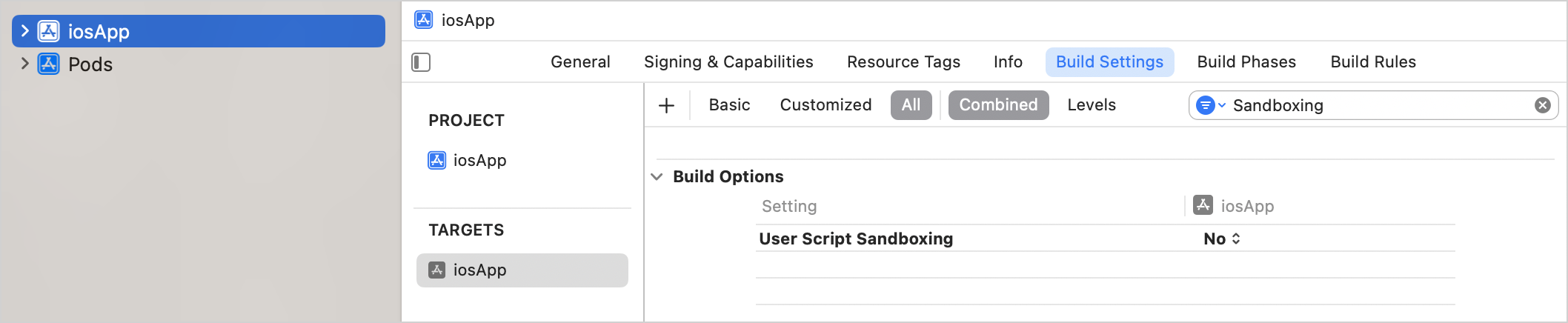
Stop the Gradle daemon process that might have been sandboxed:
./gradlew --stop