Liquid Glass in a Compose Multiplatform app
Liquid Glass is Apple's visual design system introduced in iOS 26, bringing glass-like translucency and fluidity to UI elements. To adopt it in a Compose Multiplatform app, you need a native SwiftUI shell, because Liquid Glass effects are rendered by the system through native TabView, NavigationStack, and toolbar APIs. If SwiftUI doesn't fit your project, see Alternative approaches.
This tutorial walks you through migrating an iOS app from fully Compose-driven navigation to native SwiftUI navigation with iOS 26 Liquid Glass styling, while keeping Compose in charge of rendering each screen's content. The system applies Liquid Glass effects automatically when the app uses native TabView and NavigationStack views, so you don't need to write any Liquid Glass-specific code.
We'll use the official KotlinConf app as our example.
mainbranch — starting state, with a custom theme fully implemented in Compose.lg-navbranch — final state, with the Liquid Glass design.
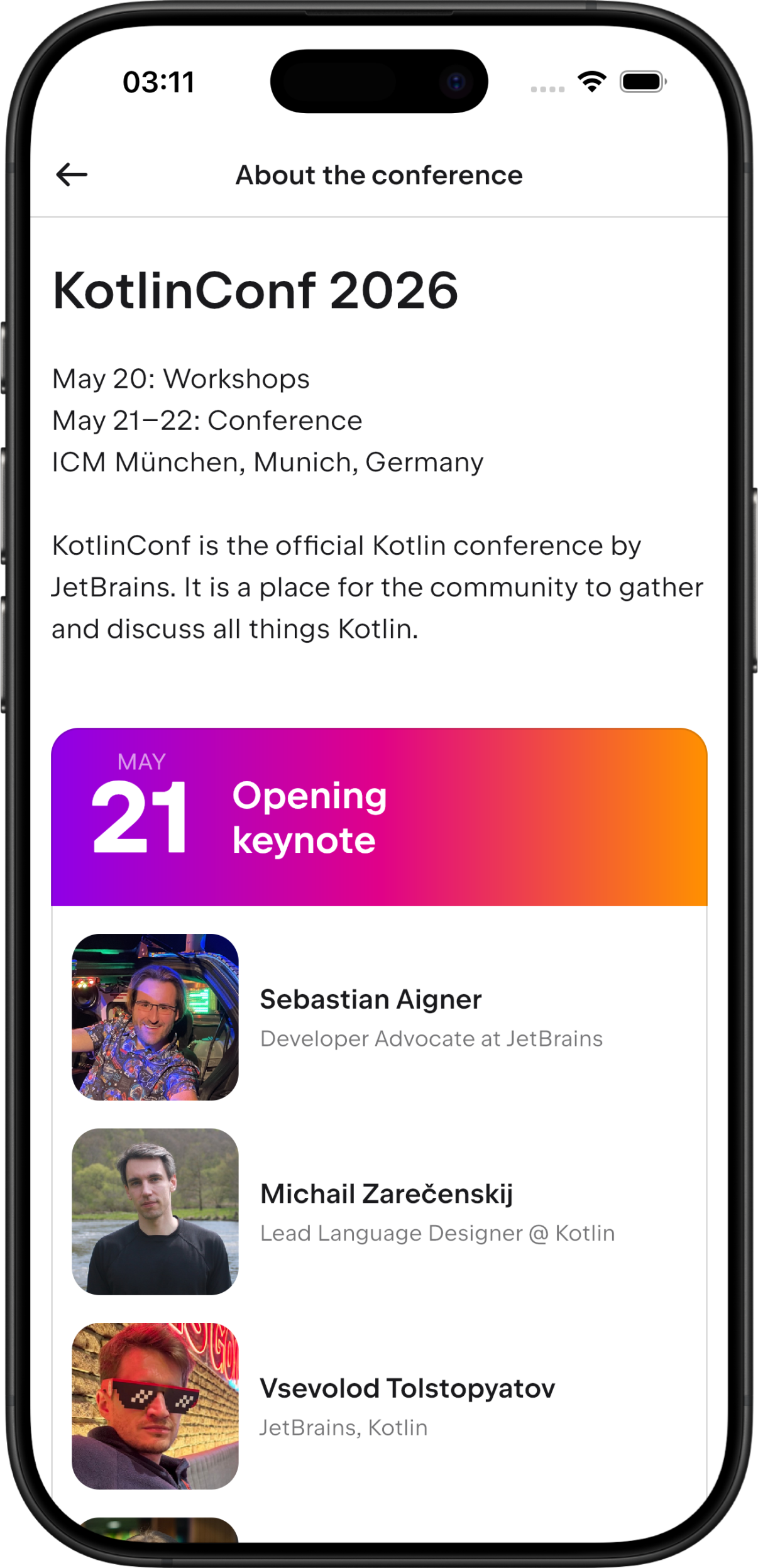
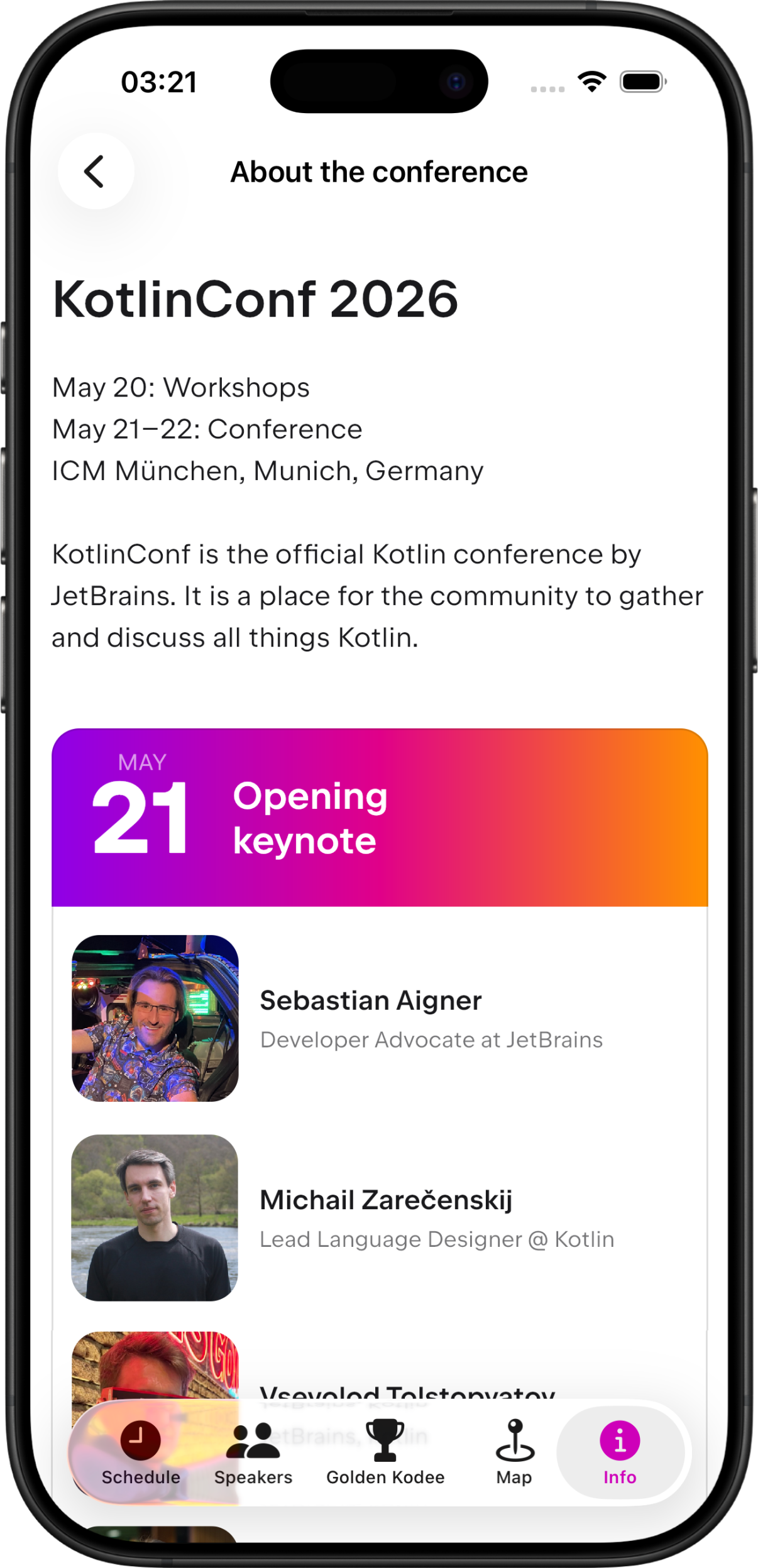
Clone the repo and check out either branch to follow along, or compare them side by side: main...lg-nav.
For simplicity, we'll migrate a two-tab version of the app (Schedule and Info), but the same pattern scales to any number of tabs.
Migration plan
In a Compose Multiplatform setup with fully shared UI code, a single ComposeUIViewController is responsible for the entire iOS UI: tabs, navigation stack, back gestures, and screen content. Compose Multiplatform's navigation transitions on iOS are designed to feel native, but some platform-level features, such as iOS 26's Liquid Glass tab bar styling, are only available through native iOS components.
The solution is to let native iOS own the tab bar and navigation stack while Compose continues to render each screen's content.
Before:
After:
Here's how navigation flows in the new setup:
SwiftUI creates a
TabViewcontaining aNavigationStackfor each tab.Compose still renders each screen's content but no longer manages the back stack.
When the user triggers navigation from a Compose screen (for example, taps a list row), the event is forwarded to Swift via
onNavigate.The Swift coordinator pushes the route into its
NavigationStack, which creates a newUIViewControllerhosting a single Compose screen.
The migration touches both the shared Compose Multiplatform code and the native iOS code. In the shared Kotlin code:
Add title metadata to routes so SwiftUI can render navigation bar titles and back stack entries without calling back into Kotlin.
Add navigation callbacks to the iOS entry point so the iOS layer can control which tab is active and respond to navigation events.
Intercept navigation at the Compose level so detail routes are forwarded to Swift instead of being handled by Compose. This tutorial shows the Navigation 3 implementation — adapt this step if you use a different navigation library.
Build a standalone screen renderer for iOS so SwiftUI can render any detail route on its own outside the full
App().Hide Compose's built-in navigation UI when SwiftUI is in charge so users don't see duplicate title bars and back buttons.
Expose new iOS entry points for creating the root view controller and individual screen view controllers.
In the native iOS code (Swift):
Build the SwiftUI navigation layer with native
TabViewandNavigationStackviews, and the bridges that embed Compose screens.
Add title metadata to routes
On iOS, each destination has a title that appears in the navigation bar, as well as in the back stack revealed by long-pressing the back button. We'll store titles directly on the route objects, so each route is self-describing and Swift can read the title without round-trips to Kotlin.
In the
navigation/Routes.ktfile, addtitleandsubtitleproperties toAppRoute:@Serializable sealed interface AppRoute { val title: String? get() = null val subtitle: String? get() = null }Override
title(andsubtitlewhere useful) on routes that appear as detail screens. For routes that already carry data, add it as an optional parameter:@Serializable data class SessionScreen( val sessionId: SessionId, override val title: String? = null, ) : AppRouteRoutes that were
data objectalso need a title, but adata objectcan't carry per-instance title state. Convert them todata class:data object SettingsScreen : AppRoutedata class SettingsScreen(override val title: String = "") : AppRouteFor the full set of updated route definitions, see
Routes.kt.Pass the localized title at the call site in the
NavHost.ktfile. SincestringResourceis a@Composablefunction, resolve it inside the entry scope and capture it in the click callback, not inside the callback itself:entry<InfoScreen> { val settingsTitle = stringResource(Res.string.settings_title) InfoScreen( onSettings = { navigator.add(SettingsScreen(settingsTitle)) }, // ... ) }
Add navigation callbacks to the iOS entry point
App() is the Kotlin entry point that iOS calls into. To let Swift drive navigation, it needs a way to do three things:
Choose the starting tab when the app launches via a new
topLevelRouteparameter.React to navigation pushes from Compose (for example, when a list item is tapped) via an
onNavigatecallback.React to tab switches initiated from Compose via an
onActivatecallback.
The new callbacks are optional and default to null, so Android, desktop, and web targets are unaffected.
In the App.kt file, update the signature of App() accordingly:
For the full implementation, see App.kt.
Intercept navigation at the Compose level
Now that App() exposes navigation callbacks, NavHost needs to use them. Whenever a detail route appears on Compose's back stack, hand it off to Swift and immediately remove it from Compose. This way, Compose renders detail screens only when invoked from Swift.
Two flows need to be set up:
Detail pushes → Swift. Whenever a non-root route lands on the back stack, forward it through
onNavigateand remove it from Compose's back stack, so SwiftUI'sNavigationStackbecomes the single source of truth.Tab switches → Swift. When the top-level route changes from inside Compose, notify Swift via
onActivateso the SwiftUITabViewselection stays in sync.
This step is specific to the Navigation 3 library. The same interception pattern applies to any Compose navigation library, but the exact API (back stack access, current destination observation) will differ.
In navigation/NavHost.kt, add the new parameters and the two interception effects to the NavHost() function:
For the full file, see NavHost.kt.
Build a standalone screen renderer for iOS
When SwiftUI owns the NavigationStack, Compose only needs to render the content of each screen. NavHost is built for managing a back stack, transitions, and lifecycle, so we need a simpler entry point for rendering a single route.
Add a flat screen renderer
ScreenContent is that simpler entry point: a flat when expression that maps a single detail route to its composable, with no navigation state of its own. Tab roots are still handled by the full App()/NavHost. SwiftUI creates a separate view controller for each destination, each hosting a single ScreenContent call.
Add the following to navigation/NavHost.kt:
Titles don't appear in this function: they were attached to the route objects back in the Add title metadata to routes step, so the Swift side can read them directly from each route when configuring its navigation bar.
Signal to Compose that SwiftUI owns navigation
ScreenContent runs in a context where SwiftUI renders the navigation bar and back button. Compose screens that draw their own title bars or back buttons must skip them.
To avoid duplication inside the composition tree, use a CompositionLocal that each screen can read without depending on iOS-specific code.
Declare LocalUseNativeNavigation as a CompositionLocal in the NavHost.kt file, before the NavHost() function:
Wrap the renderer for iOS
ScreenContent renders a route, but it needs a wrapper that sets the same theme, dependency injection, and app-wide CompositionLocal values that App() usually sets up.
Add the SingleScreenApp wrapper. It mirrors the setup from App() and additionally sets LocalUseNativeNavigation to true, so each screen automatically hides its Compose-rendered title bar and back button.
In the iosMain source set, create the SingleScreenApp.kt file:
Apply the flag to tab roots
Tab roots still go through the regular NavHost, so they also need to honor the LocalUseNativeNavigation value. Provide it based on whether native navigation callbacks are active. When they are active, render the navigation content directly and skip NavScaffold (the Compose bottom bar):
For full implementations, see NavHost.kt and SingleScreenApp.kt.
Hide Compose's built-in navigation UI
With LocalUseNativeNavigation set wherever SwiftUI renders the navigation UI, individual screens now need to read it and hide their own title bars and back buttons. Otherwise, the user would see two title bars stacked on top of each other and two competing back buttons.
In BaseScreens.kt, update the ScreenWithTitle() function to read LocalUseNativeNavigation and skip the title bar and its divider when it is true:
Apply the same pattern to any other screens that draw their own back buttons or headers.
For the full implementation, see BaseScreens.kt.
Expose new iOS entry points
To build the new navigation structure from SwiftUI, expose three Kotlin entry points: two overloads of MainViewController and one ScreenViewController. In iosMain/main.ios.kt, add the three functions:
MainViewControllerwithout callbacks, used as a pre-iOS 26 fallback. Liquid Glass APIs require iOS 26, so SwiftUI should fall back to the original full-Compose setup on older versions. Without this overload, the#availablebranch in Swift won't compile.// Pre-iOS 26 fallback: full Compose navigation, no native callbacks @Suppress("unused") fun MainViewController(topLevelRoute: TopLevelRoute): UIViewController = ComposeUIViewController( configure = { onFocusBehavior = OnFocusBehavior.DoNothing }, ) { App(appGraph, topLevelRoute) }MainViewControllerwith callbacks, called by SwiftUI for each tab root. Compose runs the fullApp()andNavHost, but navigation events are forwarded to SwiftUI instead of being handled internally. The signature includesonGoBackandonSetfor API symmetry withScreenViewController, although they aren't used in this overload.// Tab root: Compose runs NavHost but forwards navigation events to SwiftUI @Suppress("unused") fun MainViewController( topLevelRoute: TopLevelRoute, onNavigate: (AppRoute) -> Unit, onGoBack: () -> Unit, onSet: (AppRoute) -> Unit, onActivate: (TopLevelRoute) -> Unit, ): UIViewController = ComposeUIViewController( configure = { onFocusBehavior = OnFocusBehavior.DoNothing } ) { App(appGraph, topLevelRoute, onNavigate = onNavigate, onActivate = onActivate) }ScreenViewController, called by SwiftUI for each detail screen. Renders a single route viaSingleScreenApp, which setsLocalUseNativeNavigationtotrueso Compose's built-in title bars and back buttons are hidden.// Detail screen: renders a single screen with LocalUseNativeNavigation = true @Suppress("unused") fun ScreenViewController( route: AppRoute, onNavigate: (AppRoute) -> Unit, onGoBack: () -> Unit, onSet: (AppRoute) -> Unit, onActivate: (TopLevelRoute) -> Unit, ): UIViewController = ComposeUIViewController( configure = { onFocusBehavior = OnFocusBehavior.DoNothing } ) { SingleScreenApp(appGraph, route, onNavigate, onGoBack, onSet, onActivate) }
For the full implementation, see main.ios.kt.
Alternative: skip SwiftUI and drive UIKit from Kotlin
The entry points above are designed for a SwiftUI TabView and NavigationStack. Under the hood, SwiftUI uses UITabBarController and UINavigationController to implement these views, and Liquid Glass on iOS 26 applies to native tab and navigation bars whether you declare them in SwiftUI or configure them in UIKit.
If you're starting a new iOS entry point from scratch, or you don't already have a SwiftUI App and ContentView to keep, you can skip the SwiftUI layer entirely and drive UIKit directly from Kotlin. This approach avoids the RouteWrapper identity workarounds, @Observable path state mirrored from Kotlin callbacks, and UIViewControllerRepresentable wrappers that the SwiftUI shell in this tutorial requires. Navigation state lives in one place instead of being duplicated across Swift and Kotlin.
To get native navigation bars and shared Compose screen content, declare navigation contracts in commonMain as expect class coordinators, with actual implementations on each platform.
This tutorial's SwiftUI shell is declarative: you describe a TabView and NavigationStack, and SwiftUI manages the stack. The UIKit coordinator approach is imperative: you own a UINavigationController and call push and pop yourself.
The SwiftUI pieces in this tutorial map to UIKit coordinators as follows:
SwiftUI
TabViewandNavigationStack→UITabBarControllerandUINavigationControllerTabNavigationCoordinatorandRouteWrapper→ KotlinactualcoordinatorpushandpopNativeNavComposeViewandDetailComposeView→ComposeUIViewController { Screen(...) }inside the coordinatorContentViewSwiftUI shell →SceneDelegatesetswindow.rootViewController
The actual implementation in iosMain calls push and pop on UINavigationController and sets showTopBar to false. On iOS, create the coordinator from SceneDelegate and set the tab bar controller as the window's root view controller. You don't need a SwiftUI App or ContentView wrapper.
You can split the work between Kotlin and Swift in two ways:
All in Kotlin
iosMain: connectUITabBarController,UINavigationController, andComposeUIViewControllerin theactualcoordinators using UIKit interop.Screen factories in Kotlin, assembly in Swift: expose
MainViewControllerandScreenViewControllerfromiosMainthat returnComposeUIViewControllerinstances with navigation closures, and build the tab bar and navigation stacks in native Swift. This option works well when iOS navigation code should stay in Swift while screen content remains shared Compose.
Both options give you the same flat UIKit hierarchy without SwiftUI or UIViewControllerRepresentable. Choose based on where your team prefers the coordinator logic to live.
For details on using Compose inside UITabBarController, see Integration with the UIKit framework.
Build the SwiftUI navigation layer
This is the iOS side of the migration. All the Kotlin changes from the previous steps prepare the app for what happens here: a SwiftUI TabView with per-tab NavigationStacks that host Compose views as their destinations. To build that, complete the following:
Note that none of the code in this section applies Liquid Glass effects directly. iOS 26 renders Liquid Glass automatically for native TabView and NavigationStack views, so using them is enough to enable it.
Make Kotlin routes usable in NavigationStack
NavigationStack requires its path elements to be Hashable and Identifiable. To satisfy this for a Kotlin sealed interface, wrap AppRoute in a Swift struct. Add the following to the ContentView.swift file:
Pushing the same route twice must create two distinct stack entries, matching the expected navigation behavior. To achieve this, identity is based on a UUID rather than the route's value.
Track tab and navigation state
Each tab has its own navigation stack, and the app tracks which tab is currently selected. Add two @Observable classes to handle this:
AppNavigationCoordinator is simplified for the two-tab version used in this tutorial. See ContentView.swift for the full version.
Embed Compose screens as SwiftUI views
Two UIViewControllerRepresentable types connect the Kotlin entry points from the Expose new iOS entry points step to SwiftUI: one for tab roots, one for detail screens.
NativeNavComposeView hosts a tab root (Compose's NavHost) and forwards its navigation events:
DetailComposeView hosts a single detail screen, one instance for each NavigationStack destination:
Set up navigation within each tab
At the tab level, a NavigationStack uses the Compose tab content as its root and renders detail screens as destinations.
Note that .navigationTitle(title) must be set on the tab root even when .navigationBarHidden(true) is also applied. iOS 26 reads this value to label the tab in the floating tab bar, and if it's missing, the label will be blank.
Build the tab bar
The top-level container is a TabView with one Tab for each top-level route. The .tabBarMinimizeBehavior(.automatic) modifier makes the tab bar float and minimize on scroll. Without it, the tab bar stays fixed at the bottom. The .tint(Color(.accent)) modifier applies the app's accent color to selected tabs.
Color(.accent) resolves to the AccentColor asset in your Xcode project's asset catalog. You can define it either through Xcode's asset catalog editor (see Specifying your app's color scheme) or by creating Assets.xcassets/AccentColor.colorset/Contents.json. For the JSON option, you can use Contents.json from the sample project as a starting point and replace the component values with your own colors.
With two tabs, the app renders as follows:
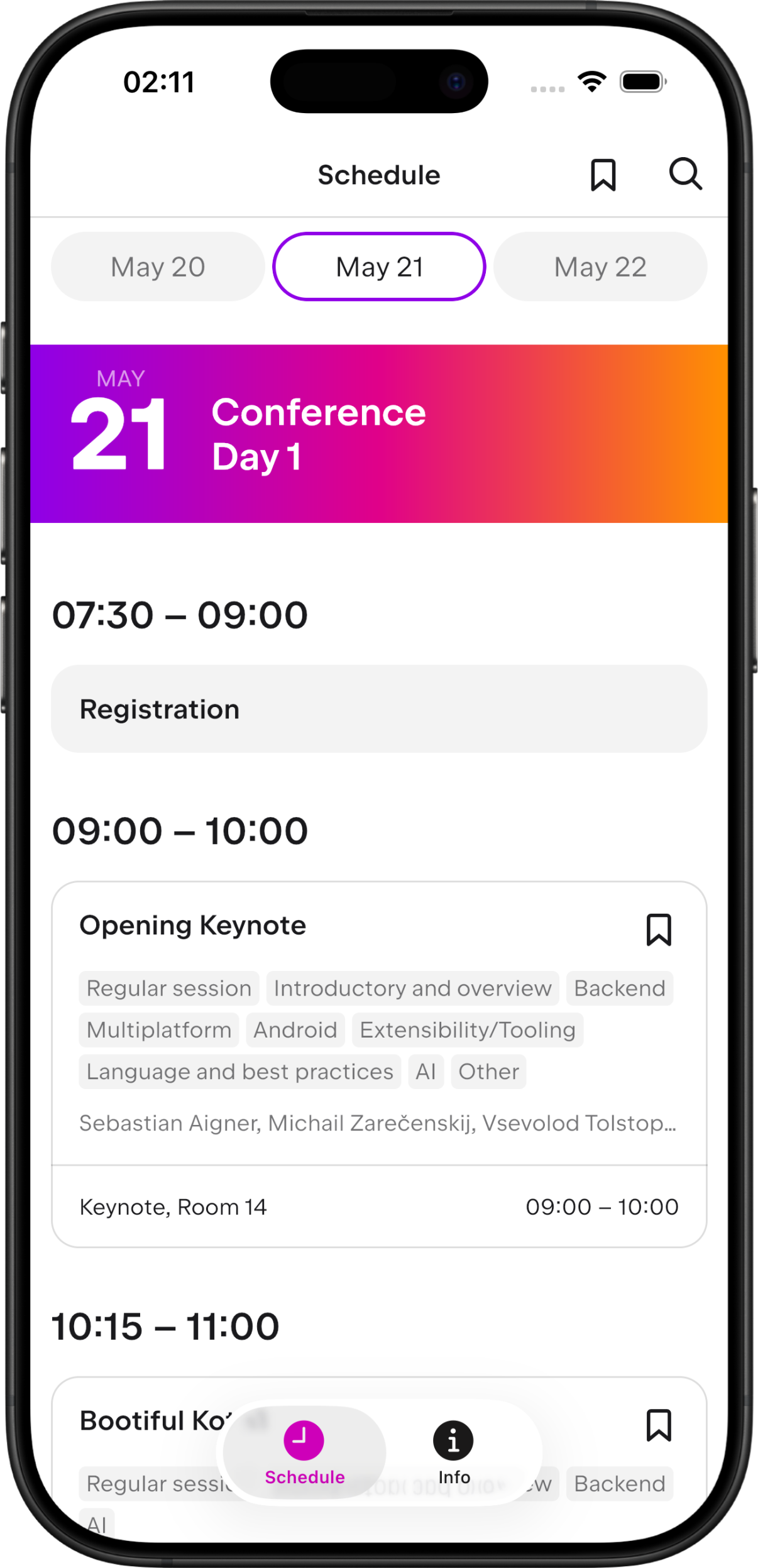
The translucency, depth, and floating tab bar are all applied by iOS 26 — no additional styling code is needed.
Fall back on older iOS versions
Liquid Glass and the new TabView APIs are iOS 26 only. On older versions, the app falls back to the previous Compose-driven setup. ComposeView is the SwiftUI wrapper around the no-callback MainViewController overload:
See the complete file: ContentView.swift.
Alternative approaches
The migration in this tutorial favors native SwiftUI navigation, which gives you Liquid Glass and other system behaviors out of the box. If this approach doesn't fit your project, consider one of these alternatives:
UIKit navigation coordinated from Kotlin. Declare navigation contracts in
commonMainasexpect classcoordinators, withactualimplementations on each platform that driveUITabBarControllerandUINavigationControllerimperatively. You get Liquid Glass and a single source of navigation state without a SwiftUI shell, but you need to write UIKit interop code. See Skip SwiftUI and drive UIKit from Kotlin for details.Compose-driven navigation with native interop controls. Keep navigation in Compose, but embed native UI controls such as
UITabBarandUINavigationBar, including Liquid Glass styling. The trade-off is some interop limitations between native overlays and Compose content.Compose-driven navigation with third-party solutions for adaptive UI. Use libraries like Calf to render adaptive UI components that are native to the platform the app is running on. This approach reduces the complexity of handling platform differences yourself and provides native behaviors like Liquid Glass on iOS out of the box.
Compose-only navigation with imitated Liquid Glass effects. Render everything in Compose and approximate Liquid Glass visually, for example, with libraries like AndroidLiquidGlass or Liquid. This approach keeps all UI on the Compose side, with the effect visually similar although not identical to system Liquid Glass.
What's next
Check out the Official KotlinConf application with the Liquid Glass effect applied.
See Adopting Liquid Glass, Apple's overview of the new material and adoption checklist.
Refer to Integration with the SwiftUI framework for the official guidance on using Compose Multiplatform inside SwiftUI and embedding SwiftUI inside a Compose Multiplatform app.