iOS-specific text input options
Compose Multiplatform supports text input on all platforms through the shared TextField and BasicTextField APIs. In shared (commonMain) code, use KeyboardOptions to configure multiplatform input behavior. In iOS-specific (iosMain) code, add PlatformImeOptions to KeyboardOptions to configure native iOS traits or override common settings. If both APIs configure the same trait, the value from PlatformImeOptions takes precedence on iOS.
Using PlatformImeOptions requires opting in with @OptIn(ExperimentalComposeUiApi::class).
Configure keyboard and input traits
PlatformImeOptions lets you configure native iOS text input traits, including keyboard type, autocapitalization, autocorrection, and Return key behavior.
For example, the following option keeps the keyboard's Return key disabled until the user enters text:
You can also customize the input interface displayed when a field gains focus:
inputView()replaces the default system keyboard with a custom input view.inputAccessoryView()attaches a custom accessory view to the system keyboard or a custom input view.
Use native text input
The default Compose Multiplatform text input implementation provides consistent behavior across platforms. On iOS, it supports native-like caret interaction: a single tap positions the caret, while a long press and drag moves it.
For editing behavior tailored specifically to iOS, you can opt in to fully native text input handling. This implementation uses an iOS UIView to manage input through the UITextInput and UIKeyInput protocols. It supports native caret movement, gestures, selection handling, and system context menus.
To enable native text input, use usingNativeTextInput in your iOS source set:
Native text input is compatible with the context menu API enabled with the isNewContextMenuEnabled flag.
Save and autofill login credentials
Compose Multiplatform can show native prompts to save login credentials and autofill Compose text fields. Keep both the username and password fields on screen so iOS can recognize the form as a login form.
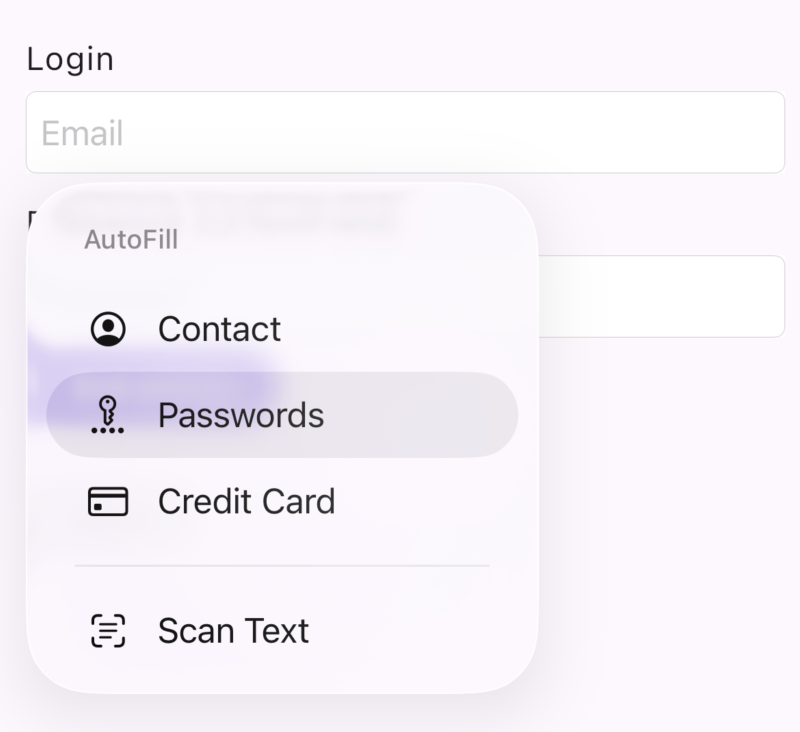
A simple login form with TextField() and SecureTextField() can look like this:
For BasicTextField(), set keyboardType to KeyboardType.Password or KeyboardType.NumberPassword: