Publish your library to npm – tutorial
To publish your library, you'll need to:
Prepare credentials, including an account on npm and an access token.
Configure the publishing plugin in your Kotlin Multiplatform project.
Provide the credentials to the publishing plugin or set up a Trusted Publisher for continuous integration.
Run the publication task, either manually or using CI.
In this tutorial, we use GitHub to host the project and run CI via GitHub Actions.
Sample library
You can use a sample library project to follow along and see a working configuration.
If you reuse the code, make sure to replace all example values with values specific to your project.
Prepare accounts and credentials
To publish to npm, you need to be signed in at the npm portal.
In this tutorial, you will need an organization and an access token to configure the manual publishing.
Create a simple organization
In this tutorial, we publish the library under an npm organization to avoid naming conflicts.
To create a new organization, follow the npm documentation.
Generate an access token
To publish to npm manually, you need an access token that allows publishing a package under your newly created organization. To generate such a token, follow the npm guide.
For this tutorial, use a simplified security configuration:
Enable the Bypass two-factor authentication (2FA) option.
Set both the general permissions and organization permissions for the token to Read and write.
Configure the library project
If you use the sample project, update the default names before publishing. This includes:
Name of the library module.
Name of the project set in the
settings.gradle.ktsfile.
When the names are set, follow the next steps to set up publishing.
Set up the publishing plugin
This tutorial uses the official npm-publish plugin to help with publishing to npm. To learn more about the plugin and available configuration options, see the plugin's documentation.
Add the plugin to your Kotlin Multiplatform project:
Open your library module's
build.gradle.ktsfile.Add the following line to the
plugins {}block:// <module directory>/build.gradle.kts plugins { kotlin("npm-publish") version "3.7.0" }Add the following configuration. Make sure to customize the values for your library. The only required parameters are
organization,authToken,packageName, andversion. The rest is given as an extended example:// <module directory>/build.gradle.kts npmPublish { organization = "organization_name_without_the_@_sign" registries { npmjs { // You'll pass your npm token as this environment variable // when you run the command to publish the package authToken = System.getenv("NPM_TOKEN") } } packages { named("js") { version = "0.0.1" packageName = "greetings" readme = file("../README.md") packageJson { license = "Apache 2.0" homepage = "https://github.com/Kotlin/kotlin-multiplatform-web-library#readme" description = "Shared Kotlin/JS Greetings library" keywords = listOf("kotlin", "kotlin-js", "greetings", "shared", "api") author { name = "Kotlin Developer Advocate" url = "https://github.com/kotlin-hands-on/" } contributors = listOf( Person { name = "John Smith" email = "john.smith@example.com" url = "https://github.com/johnsmith" }, ) repository { type = "git" url = "https://github.com/Kotlin/kotlin-multiplatform-web-library.git" } } } } }
The important settings in the npmPublish {} block are:
The
organizationparameter and theregistries {}block specify authentication details. In this case, we use the main npm registry and the name of theNPM_TOKENvariable that should hold the token when the publishing task is run.The
packageNameandversionparameters define the mandatory package options:The
versionparameter can be omitted to use your module's version as the default value.The
packageNameparameter can be omitted to use the name of your module as the default value.
The
packageJson {}block holds various metadata.
Publish manually
Publishing manually can be useful when you're still experimenting with the project structure, or want to implement the publishing automation yourself.
Now you can publish the library to npm from the local machine. To do so, run the following command, pasting the access token you generated earlier in place of YOUR_ACCESS_TOKEN:
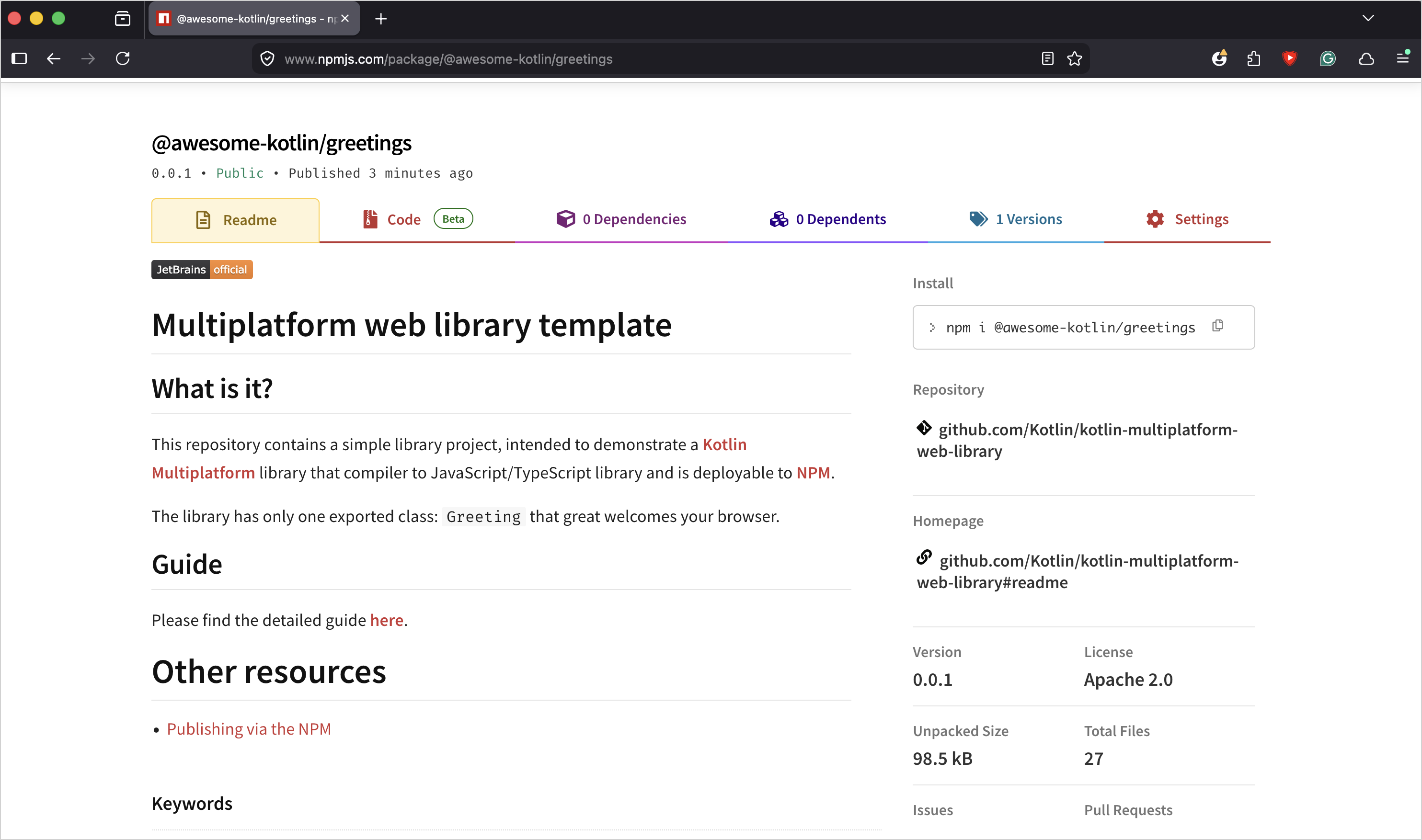
When the library is published, you should be able to see it in the npm registry. Open your npm organization page and check the Packages tab (but not on your personal Packages page).
Troubleshooting
A couple of things that can often go wrong with manual publication:
Keep track of the
versionfield in thebuild.gradle.ktsconfiguration: npm fails publication if the package was already published with the same or earlier version.When generating a token for an organization-scoped package, make sure to set both general and organization permissions.
Publish using continuous integration (CI)
The npm mechanism of Trusted Publishers allows you to quickly set up a CI using OpenID Connect. This approach avoids generating and maintaining tokens altogether.
In this example, we'll set up a workflow using GitHub Actions.
Create a GitHub Actions workflow file
Create a .github/workflows/publish.yml file that configures the GitHub action:
Once you commit and push this file into the GitHub repository hosting your project, the workflow runs whenever you create a GitHub release in that repository.
Set up GitHub Actions as your Trusted Publisher
Now that you have a workflow published, you can use the GitHub Action to add a Trusted Publisher to your npm package:
Open the published package page.
Open the Settings tab and find the Trusted Publisher section.
Under Select your publisher, click the GitHub Actions button.
Fill out the form:
your GitHub name (or organization)
the repository name
the name of the workflow file (in this tutorial, we've used publish.yml).
Click the Setup connection button.
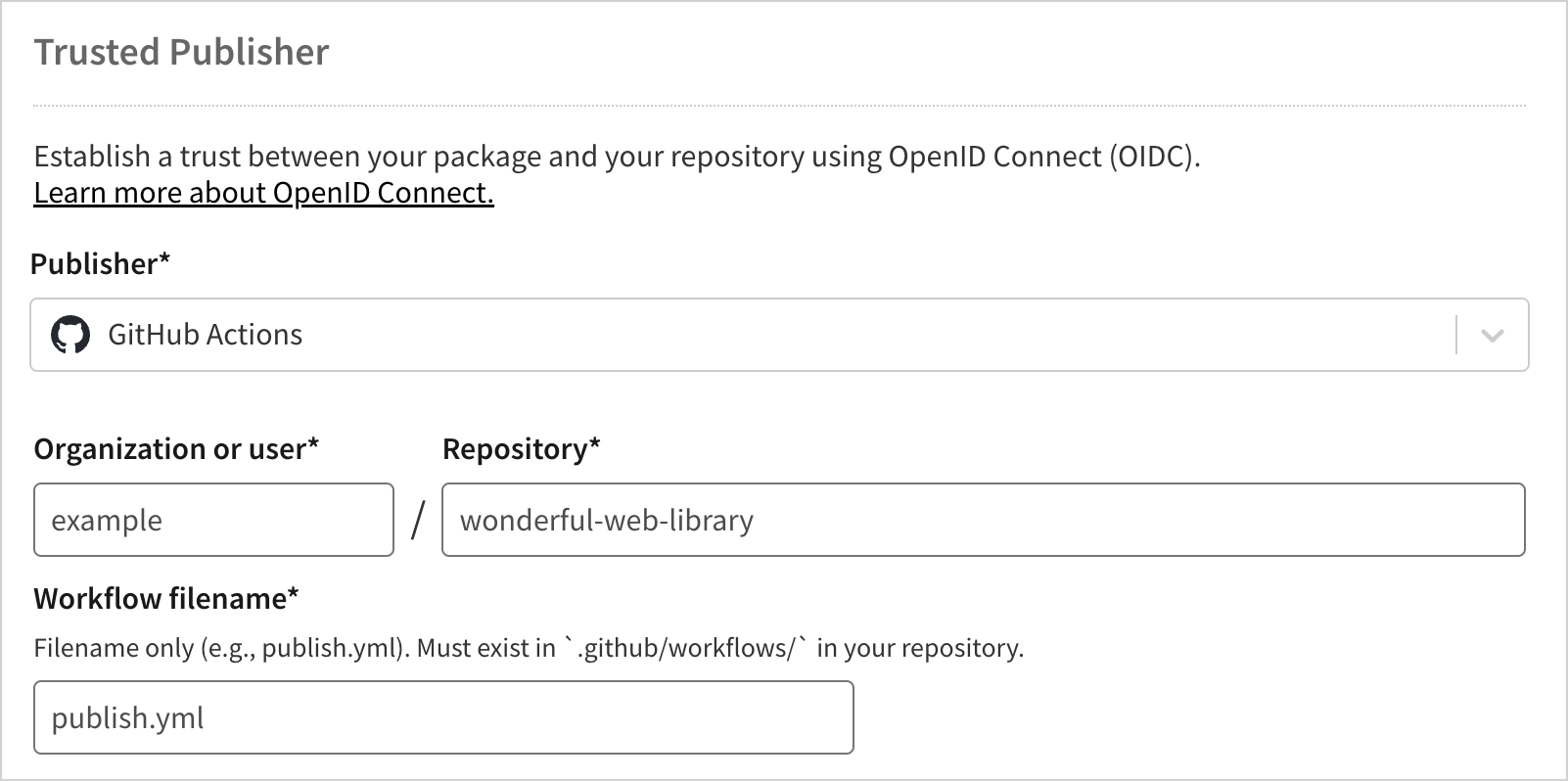
The created connection is then listed in the Trusted Publishers section of your package's settings, which means that the workflow with the specified coordinates is now authorized to publish to npm.
Create a release on GitHub
With the workflow and the Trusted Publisher connection set up, you're now ready to trigger publishing by creating a GitHub release:
Set the package version in the
build.gradle.ktsconfiguration to the one you want to publish.Go to your GitHub repository.
In the right sidebar, click Releases.
Click the Draft a new release button (or the Create a new release button if you haven't created a release for this repository before).
Create or select a Git tag (match the module's version if possible to keep the numbering consistent across systems).
Set the release title (it's handy to name the release same as the tag).
To keep track of everything, you may want for the version in the tag to be the same as the version number of the library that you specified in the
build.gradle.ktsfile.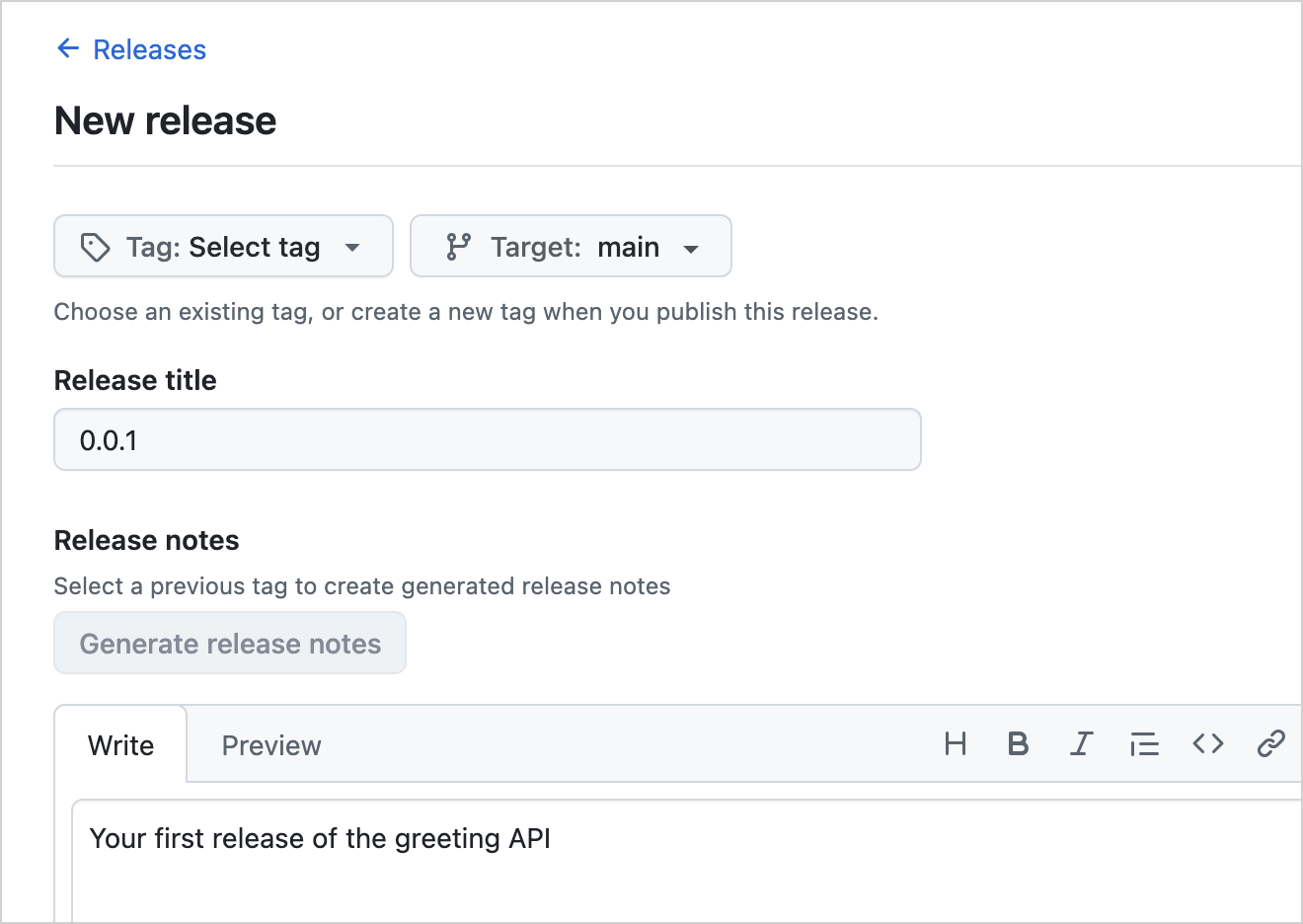
Click the Publish release button.
To check whether the Action was triggered, click the Actions tab at the top of your GitHub repository's page. You should see that the newly published release triggered a run of the publishing workflow. Click on the workflow to see the logs of the publication task.
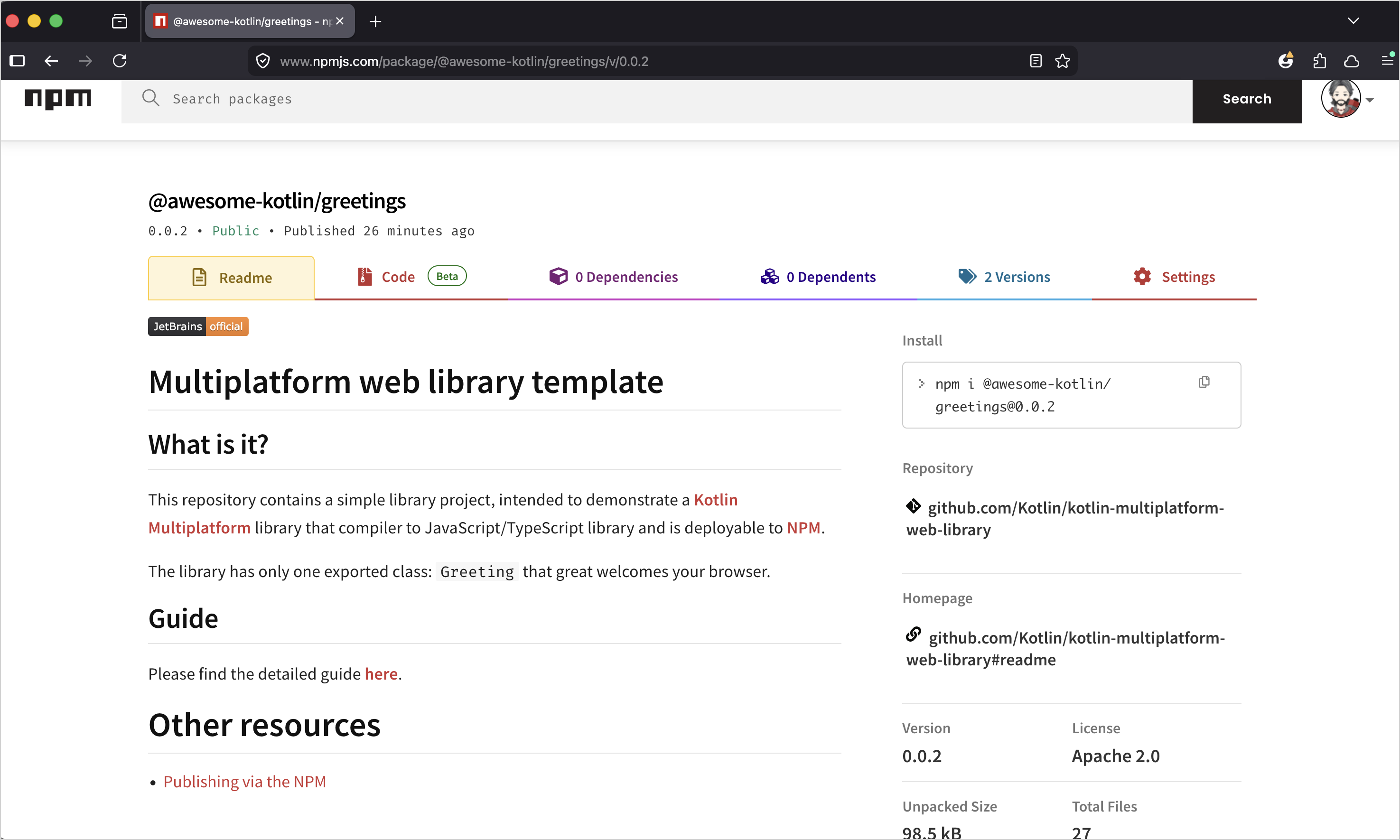
When the workflow run is complete, the new version of your package should be listed on your package's page in the npm registry.
What's next
Share your library with the community in Kotlin Slack (to sign up, visit https://kotl.in/slack)